
Getting Started
This page takes you from a fresh checkout to a saved .archimate model.
What you need
- Node.js 22+ and npm to run the app locally.
- A modern browser. Chromium-family browsers (Chrome, Edge) are recommended: they support the File System Access API, which lets Save write straight back to the file you opened. They also provide the best installed-app, file-handler, and share-target support for production builds. Other browsers work too — saving falls back to a normal file download.
Run the app
npm install
npm run dev
Open the URL Vite prints, usually http://localhost:5173.
To build and serve the production static site instead:
npm run build     # typecheck + build into dist/
npm run preview   # serve the built site locally
The build output in dist/ is a fully static site — you can host it on any static file server.
Install the app
When Archi Online is served from a production build, supported browsers can install it as a standalone app. After the first load, the service worker precaches the app shell, core hashed build assets, the autosave worker, examples, icons, and manifest so the editor can launch offline. The Monaco editor and language workers enter a runtime cache after their first successful load, keeping them out of the initial precache. Your models still live in files or browser storage on the current machine; nothing is uploaded by installation.
On browsers and operating systems that expose the relevant PWA features, the installed app also provides:
- New model and Open model file app shortcuts.
- A
.archimatefile handler that opens model files into the editor. - A web share target for shared
.archimateor XML model files.
The exact install UI and operating-system integration are browser-dependent.
Your first model
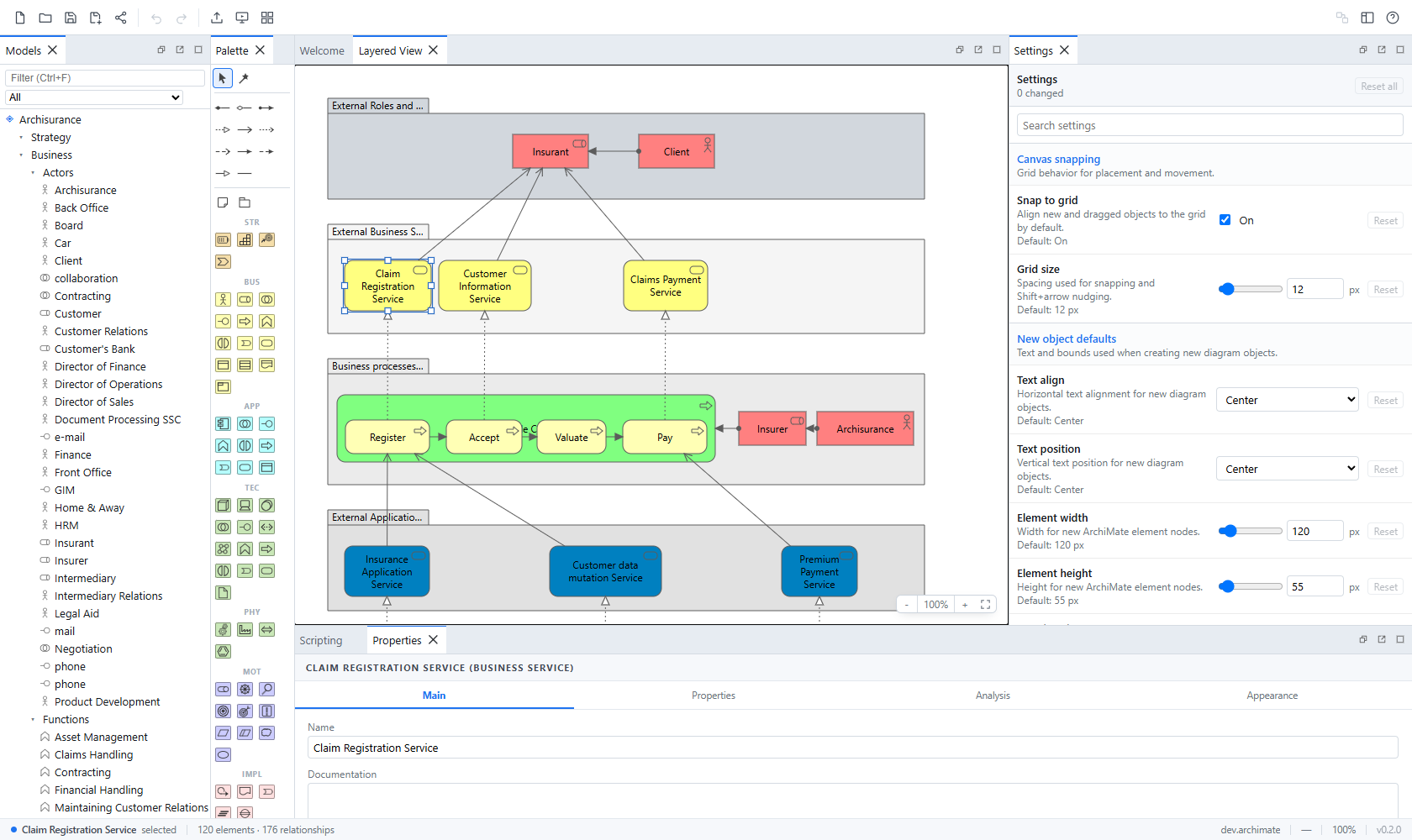
- Click New in the toolbar. A new model appears in the Models tree with the standard ArchiMate top-level folders (Strategy, Business, Application, Technology & Physical, Motivation, Implementation & Migration, Other, Relations, Views).
- Right-click the Views folder and choose New ArchiMate View, or use the welcome screen's shortcut. Double-click a view in the tree to open it as an editor tab.
- Drag elements from the Palette onto the canvas. The palette groups element types by ArchiMate layer, with notes, groups, and relationship tools at the top.
- Draw a relationship: pick a relationship tool, then drag from one element to another. The canvas gives live feedback — targets that the ArchiMate metamodel forbids are rejected. If you're not sure which relationship to use, pick the magic connector: connect to an existing element and choose a valid forward/reverse relationship (reusing an existing semantic relationship or creating a New one), or finish on empty canvas/a Group to create a valid target and relationship together. Shift-click or double-click any creation tool to keep it selected;
Escapereturns to Select / move. - Select any object and edit its name, documentation, key-value properties, and appearance in the Properties panel.
- Press
Ctrl+S(or click Save) and choose where to store the.archimatefile.
That file opens directly in desktop Archi — see Archi Compatibility.
Opening and saving files
- Open… (
Ctrl+O) adds one or more.archimatefiles, including models created with desktop Archi. It also accepts ArchiMate Open Exchange.xmlfiles and imports them as new, unsaved models. After a disk, installed-app, share-target, Exchange, or example import, the first view in the model tree opens automatically. Blank new models and restored workspaces whose saved open-view list is empty remain viewless. - Save (
Ctrl+S) writes back to the file you opened when the browser supports the File System Access API. Otherwise — or when browser policy blocks file handles — the app saves via a regular download. Saving always writes Archi's native.archimateformat. - Save As… always lets you pick a new target.
The Models panel shows every open model as a separate root and marks dirty models with *. Toolbar commands and the status area follow the active model. Right-click a model root to save or close that model; dirty closes offer Save, Don't Save, and Cancel.
Each view keeps its own zoom and pan position in the browser workspace. The first time a view opens, it remains at 100% with a 20 px offset when the diagram already fits; an oversized diagram is fitted once when its canvas becomes visible. Saved viewport positions restore independently in each model session.
Where your work lives
Two different kinds of storage are involved:
| Data | Where it lives |
|---|---|
| The model itself | .archimate files you open and save |
| Autosave snapshot of every open model and workspace state | Browser IndexedDB |
| Window/panel layout | Browser IndexedDB |
| App settings | Browser IndexedDB |
| Script library | Browser IndexedDB |
Extensions and imported .archi-ext packages | Browser IndexedDB |
| Private extension storage | Browser IndexedDB |
The app autosaves the complete multi-model workspace shortly after every change and restores it the next time you open the app in the same browser profile. Autosave is a crash safety net, not a substitute for saving: browser data can be cleared by the browser or the user, and it never leaves the machine. Export anything you care about as a .archimate file.
Browser-local data (settings, scripts, extensions, layout) is never written into .archimate files.
Next steps
- User Guide — every panel, tool, setting, and shortcut.
- Scripting API — automate the model from the Scripting panel.
- Extensions — download and install the official ELK Layout and Capability Map extensions.