
User Guide
A tour of the whole application: the workspace, every panel, the canvas, the settings, and the keyboard shortcuts.
The workspace
Archi Online uses an IDE-style docking layout (dockview). Multiple models can be open together in the Models panel. Views from any model open as tabs in the center editor area; tool panels follow the active model.
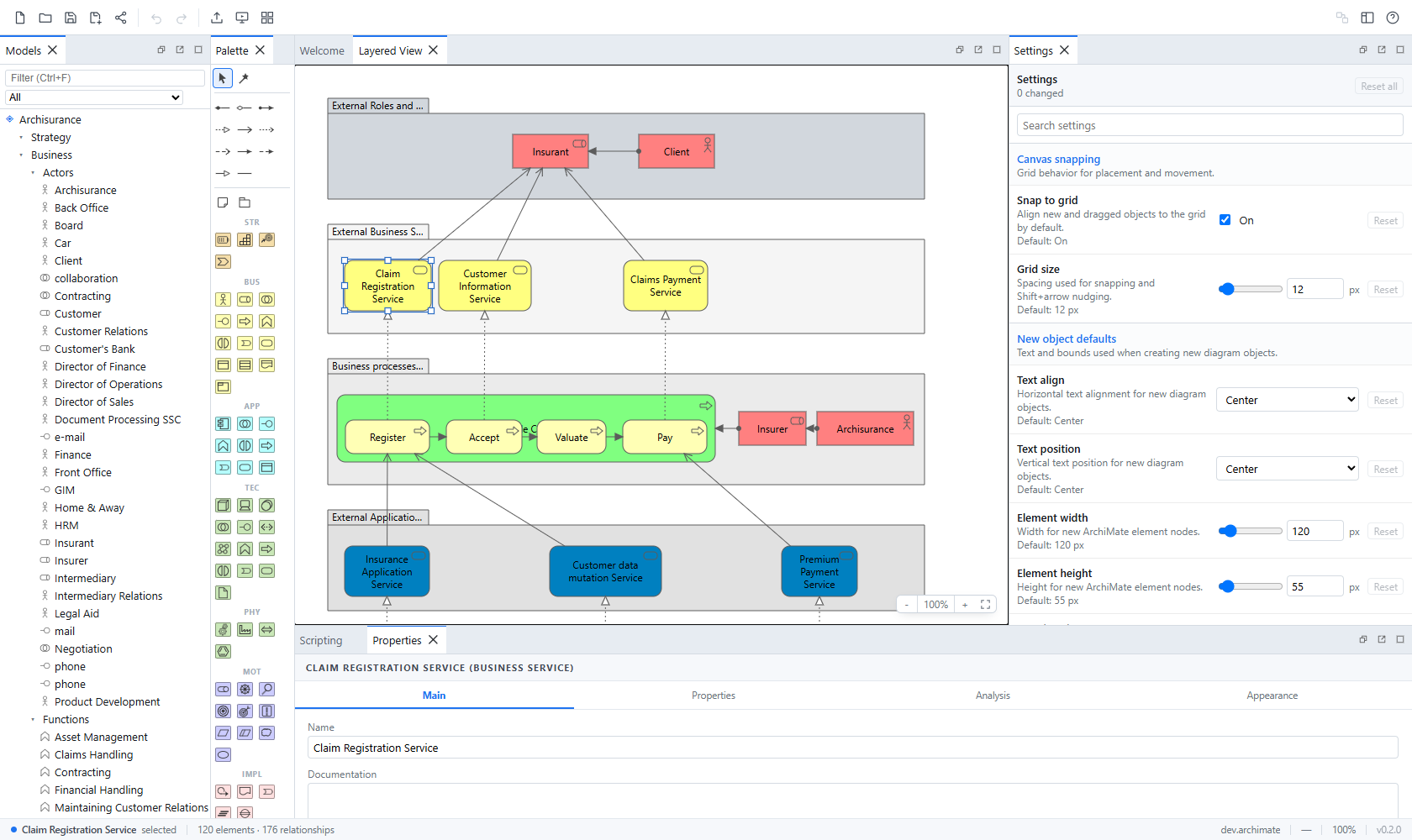
You can:
- drag tabs to split the editor area and put views side-by-side,
- move, close, or float any panel,
- maximize a group and restore it,
- reopen closed panels from the toolbar Views ▾ menu,
- reset everything with Views ▾ → Reset Layout.
The layout persists across sessions in the current browser profile. On a fresh profile, Models and Palette share the left side, Welcome and view tabs occupy the center, and Properties is active beside Settings on the right. Scripting and Extensions remain available from Views ▾, but are not opened until you choose them. Reset Layout restores this fresh default; a previously saved layout is otherwise left exactly as you arranged it.
Core panels:
- Models — the model tree: folders, elements, relationships, and views.
- Palette — element and relationship tools for the active view.
- Properties — details and appearance of the current selection.
- Settings — browser-local editing preferences.
- Scripting — the jArchi-style script library, editor, and console.
- Extensions — manage local extensions and
.archi-extpackages.
Extensions can contribute additional dockable panels; they appear in the Views ▾ menu like the built-in ones.
Toolbar
| Control | What it does |
|---|---|
| New | Add a new unsaved model to the workspace. |
| Open… | Add one or more .archimate models, or import ArchiMate Open Exchange .xml files (Ctrl+O). |
| Save / Save As… | Save the active model as native .archimate XML through its file handle or download fallback (Ctrl+S). |
| Import/Export ▾ | View image export (PNG/SVG/clipboard), offline static HTML reports, ArchiMate Open Exchange import/export, and CSV import/export. See [[Import & Export |
| Present | Full-screen, chrome-free walkthrough of the model's views (arrow keys to step, Esc to exit). |
| Undo / Redo | Step through model transactions; the tooltip names the operation. |
| Find and replace | Preview and selectively replace text in the captured model or its active view. |
| Properties manager | Inspect exact property-key usage and preview a model-wide rename or delete. |
| status area | Model name, file name (or unsaved), and a • dirty marker. |
| extension buttons | Toolbar buttons contributed by extensions. |
| Extensions ▾ | Extension menu items, plus registered extension commands that don't already appear in an extension menu. |
| Views ▾ | Reopen panels (open ones are check-marked) and reset the layout. |
| ? | Keyboard shortcut reference. |
The context-help strip beneath the toolbar describes the command currently under the pointer or keyboard focus. Use its Hide toolbar help button to remove it; Settings → General → Show toolbar context help restores it.
Static HTML Report (.zip)… exports the complete active model as an offline stakeholder report. Extract the ZIP and open index.html to use its model tree, literal search, deep links, object details, analysis links, and diagram zoom controls. The package contains model content and embedded view images but not browser settings, extensions, scripts, autosave, file handles, sharing credentials, or tokens.
Models tree
The Models panel shows every open model as a collapsible root. Clicking a root or item, or focusing one of its view tabs, makes that model active. An asterisk after a root name means that model has unsaved changes.
- Search / filter — the box at the top applies one search across every open model. Search options can combine multiple exact concept types, cross-model specializations, and Views with raw Name, Documentation, selected property keys, or Property Value text. The type/specialization/View choices form one OR group; the text/property choices form another, and both groups must match when active. Options also include Show All Folders, Match Case, Unicode Regular Expression matching, Reset, and Refresh. Invalid expressions are reported without changing the model. Only the seven boolean options persist in browser settings; query text and selected keys/types/specializations do not.
Ctrl+Ffocuses the box;Escclears its text. Clearing all active criteria restores the previous expansion and selection state. - Open a view — double-click it, or right-click → Open View.
- Keyboard navigation —
Up/Downmoves focus and selection through the visible rows;Home/Endjumps to the first/last row;Leftcollapses a folder or moves to its parent;Rightexpands a folder or moves to its first child.Enteropens a focused view,F2renames, andSpacetoggles the focused row in the tree selection. HoldCtrl(orCmd) with navigation keys to move focus without replacing the current selection. - Create content — right-click a folder: New Element offers the element types belonging to that folder's layer, New ArchiMate View appears under the Views folder, and New Folder creates a subfolder.
- Rename —
F2or the context menu; the model root can be renamed too. - Change a concept type — select one or more elements or relationships, then right-click → Set Concept Type. The replacement keeps names, documentation, properties, occurrences, and semantic links, but receives a fresh ID and drops incompatible specializations and type-specific fields. Element changes that invalidate connected relationships show a preview and require confirmation before those relationships become Associations.
- Invert a relationship — right-click → Invert Connection Direction. The command is disabled when the relationship type is not legal in the reverse direction.
- Save or close a model — right-click its root. Dirty models offer Save, Don't Save, and Cancel; Close Others/All stops at the first cancellation.
- Copy between models — use
Ctrl+Cor right-click → Copy on selected diagram objects, tree elements, or whole views, activate the target model or view, then useCtrl+Vor right-click → Paste. Tree elements become visual objects when pasted into a view; view objects become model concepts when pasted into another model tree. Cross-model paste creates fresh IDs and carries the referenced concepts and relationships; custom folder structures are not copied. - Duplicate —
Ctrl+Dor right-click → Duplicate copies the selected elements and views (matching desktop Archi: not relationships or folders). The copy gets a(copy)name suffix and lands in the same folder. An element copy does not copy its relationships; a view copy shows the same concepts as the original. One undo step, and the copies end up selected. - Delete — removes the selected items from the model. Deleting a concept also removes its visual objects from all views and cascades any relationships that depended on it, as one undo step. Multi-select works (
Delete 3 items). - Drag onto a view — drop elements or relationships from the tree onto an open view to add them to the diagram. Dropping a view onto another view creates a view reference.
- Linked selection — selecting elements or relationships in the Model Browser highlights every matching occurrence in all open views. Selecting element nodes or relationship connections in a view highlights the matching Model Browser rows and occurrences in the other open views. This is always active. Notes, groups, images, legends, view references, and plain connections have no Model Browser counterpart and remain canvas-only.
Extensions can add items to the tree's context menu.
Find and replace
Use Find and replace in the toolbar for reviewed bulk edits. The dialog is bound to the model session that was active when you opened it. Model means that one model, not every model shown in the Models panel; Active view limits the operation to the current view.
- Model scope includes model information, folders, elements, relationships, views, groups, note and legend text, and plain diagram connections.
- Active view scope includes the view itself, recursively nested groups, notes and legends, plain connections, and the underlying concepts used on that view. A view-reference object includes the referenced view itself, but not the referenced view's contents. Repeated visual occurrences of the same underlying object produce one result.
- Fields and matching search Name and Documentation by default. Property values are opt-in, as are Match case and Regular expression. Find text cannot be empty; replacement text can be empty to delete matches. Every occurrence in a field is replaced. Literal mode treats both the find and replacement text literally. Regular-expression mode uses a global Unicode JavaScript regular expression and supports native replacement tokens such as
$1and$&. - Preview first shows stable rows with type and location, field, before/after text, and occurrence count. All rows start selected; clear any rows you do not want to apply. Click a result's type to navigate to it. Apply changes only the selected rows in one Find and Replace undo step.
Changing the criteria, model state, or active view invalidates the preview. Closing or replacing the captured model session also makes an old preview stale, so it is rejected rather than applied to a different target. Open a new preview before applying. In a read-only model, preview and navigation remain available, but Apply is disabled.
Palette
The palette is enabled only while an editable view is active. With no open view, or when the active view is read-only, every tool is disabled and the panel explains that you must open an editable view first.
From top to bottom:
- Select / move — the default tool (
Escapereturns to it). - Magic connector — start from an element, then either choose a valid forward/reverse relationship to an existing element or click empty canvas/a Group to create a valid target element and relationship together. Existing semantic relationships can be reused; New creates a distinct one.
- Relationship tools — one per ArchiMate relationship type.
- Note and Group — plain annotation objects.
- Legend — a native Archi 5.8/5.9 live legend. It lists each unique element, relationship, and specialization that occurs in the view and updates automatically as the view changes. This is separate from the C4 command that inserts a textual C4 legend.
- Plain connection — a native non-semantic connection for annotations. At least one endpoint must be a Note; nodes and other connections can be the other endpoint.
- Element types — grouped by layer: Strategy, Business, Application, Technology, Physical, Motivation, Implementation & Migration, and Other (including Junction).
Drag an element type onto the canvas to create a new element, or click a relationship tool and drag between two diagram objects. While drawing a relationship, invalid targets are rejected based on the official ArchiMate allowed-relationship matrix.
Magic Connector target-creation menus list relationships first. Hold Ctrl (Command on macOS) while placing the target to list elements first instead. The created target is selected and ready to rename in place. Palette creation tools are one-shot by default; Shift-click or double-click a tool to keep it selected for repeated use. A later single click clears the lock, and Escape always returns to Select / move.
Magic Connector menus support arrow-key navigation at every level. On a narrow viewport, place an empty-canvas target farther left or use arrows and Enter if a three-level relationship/category/type menu overlaps an earlier column.
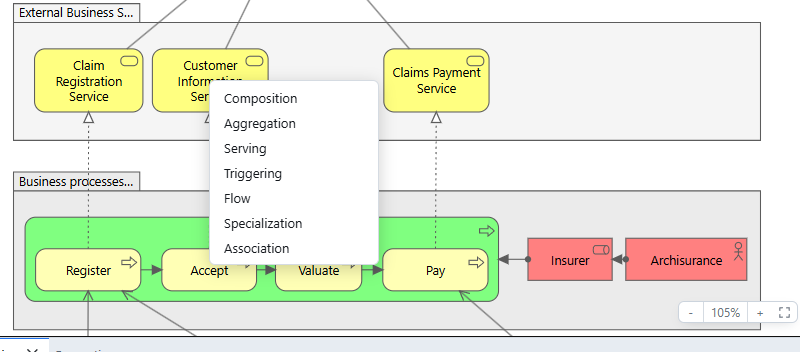
When the active view declares a viewpoint (set it in the Properties panel), element types the viewpoint does not allow are greyed out and inert — they cannot be clicked or dragged. The allowed-element table is ported from desktop Archi's viewpoint definitions; Junction and Grouping are always allowed, and relationship, note, and group tools are never restricted. Clearing the viewpoint restores the full palette.

Canvas editing
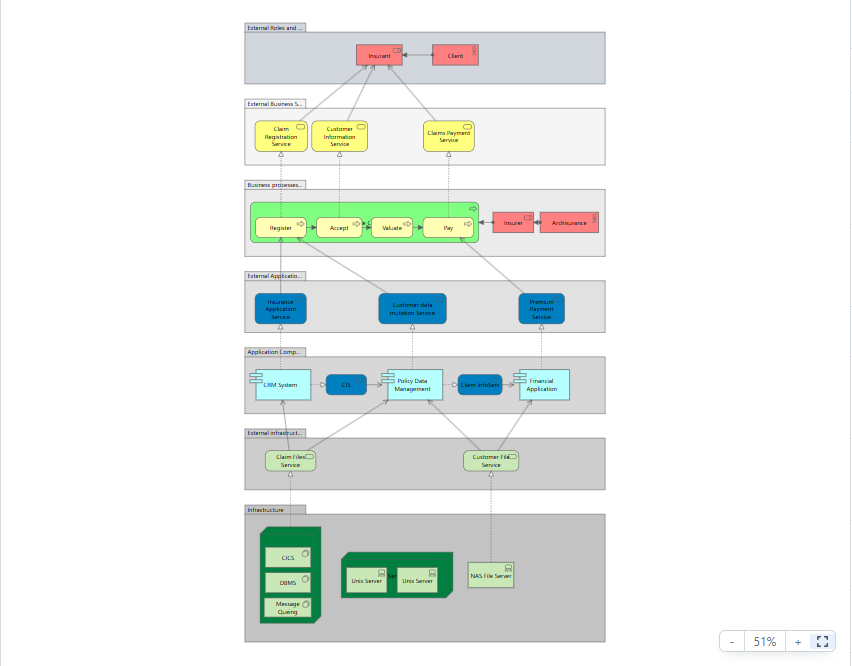
The view editor is a custom SVG canvas. It supports:
- Selection — click,
Ctrl-click to add or toggle, marquee-drag over empty space (holdCtrlto add to the current selection),Ctrl+Afor all. - Move and resize — drag objects or their resize handles. Grid snapping and blue edge/centre alignment guides apply by default; hold
Altto bypass both for one drag. Right-click empty canvas → Grid and Guides to show or hide the editor-only grid and toggle either snapping system. Arrow keys nudge the selection by 1 px,Shift+arrows by one grid step. Resize handles remain 7 screen pixels across zoom levels. - Nesting and automatic relationships — drop an element inside a group or another element to nest it; child bounds stay relative to the parent. When Automatic Relationships are enabled, an element container offers the valid normal/reverse semantic relationships configured in Settings. Accepting one creates the relationship and nesting in one undo step, hides configured relationship occurrences while nested, and reveals them when un-nested.
- Cut / copy / paste —
Ctrl+X/Ctrl+C/Ctrl+V, or the diagram context menus. Cut removes transferable node roots in one undo step while leaving their semantic concepts in the model. Pasting a copied tree element creates a visual element; pasting a copied tree view creates a view-reference object. Pasting diagram objects into another model tree copies their referenced concepts and internal relationships without copying the source diagram geometry. Within one model, normal diagram paste matches desktop Archi: if a concept already occurs in the target view, paste creates an independent copied concept; if it does not, the new visual references the existing concept. Paste Special follows the browser-local Clipboard setting: Reference existing concepts explicitly reuses same-model concepts, while Duplicate concepts always clones them. Reference mode is unavailable across models; regular paste is unchanged. - Duplicate —
Ctrl+Dor right-click → Duplicate clones the selected diagram objects in place (slightly offset). Element nodes receive independent copied model concepts, and internal relationship connections receive copied relationships. Notes and groups are visual-only copies; view references keep pointing to the same view. The operation is one undo step. - Align, match size & distribute — right-click a multi-selection for Align (left/center/right/top/middle/bottom) and Match Size (width/height/both), which snap the selection to the anchor element — by default the last-selected one (change it under Settings → Align & distribute). With three or more objects, Distribute (horizontally/vertically) equalizes the gaps between them, keeping the two outermost fixed — PowerPoint semantics. Each action is one undo step.
- Order, select, and remove — right-click diagram objects for the four stable multi-selection ordering commands (Bring to Front, Bring Forward, Send Backward, Send to Back) or Select Objects of Same Type. Delete from View removes selected containers recursively; Delete from View but Keep Children reparents surviving children without moving them on screen. Both leave semantic concepts in the model.
- Format Painter — choose the paint-roller tool, click a source object, and click a compatible target. A normal palette click paints once;
Shift-click or double-click keeps the painter active across views in the same model.Escapeor double-clicking empty canvas clears it. The painter copies only applicable appearance—not bounds, labels, content, properties, semantics, routes, or bendpoints. - Direct edit —
F2or double-click to rename in place. - Concept commands — right-click selected element or relationship occurrences to use Set Concept Type. Relationship occurrences also offer Invert Connection Direction; every occurrence is reversed together, including its route and source/target label position.
- Notes, groups, view references — notes and groups come from the palette; view references are created by dragging a view from the tree.
- Connection endpoints — semantic and plain connections can terminate on nodes or other connections. Select a connection and drag its source/target handle onto another connectable to reconnect it. Endpoint handles remain 8 screen pixels across zoom levels and have a transparent 12-pixel hit area. The preview and hovered target are amber for Move anchor, green for a valid Reconnect to target, and red for an invalid, cross-view, cyclic, or router-restricted target; the status bar shows the same intent instead of cursor coordinates while dragging. In a Manual view, drop the handle back onto its current element to reposition the visual anchor where the line touches the element. A near-miss within 6 screen pixels of that element's boundary remains an anchor move rather than reconnecting to an enclosing container. Anchor positions are stored as native bendpoints and survive
.archimatesave and reload. Connection-to-connection endpoints remain reconnectable but do not have a border anchor. PressEscape, cancel the pointer, or lose pointer capture to abandon the drag without mutation; dropping on empty canvas also changes nothing and briefly reports Reconnect cancelled. - Routers and bendpoints — choose Manual or Manhattan on the view's Properties. Manual mode renders and edits bendpoints; Manhattan mode derives an orthogonal route while preserving dormant manual bendpoints for a later switch back. Drag a manual connection to add a bendpoint and double-click a bendpoint to remove it. Bendpoint handles remain 7 screen pixels across zoom levels. Settings → Connections → Use orthogonal connection anchors changes automatic attachment points to horizontal or vertical approaches, using corners when alignment is not possible. This browser-local preference applies to both routers, but direct anchor positioning is Manual only.
- Zoom —
Ctrl+wheel,Ctrl+=/Ctrl+-,Ctrl+0for 100%,Hometo fit the diagram to the window. Zoom is per view. - Pan / scroll — middle-drag or
Space+drag to pan; wheel andShift+wheel to scroll.
Deleting on the canvas removes objects from the view only; the underlying concepts stay in the model. Delete from the Models tree to remove a concept from the model itself.
Navigator
The Navigator walks the relationship graph from a root concept, like desktop Archi's Navigator view. It is an opt-in panel — open it from Views ▾ → Navigator (it docks with the Models panel) — and works in read-only mode.
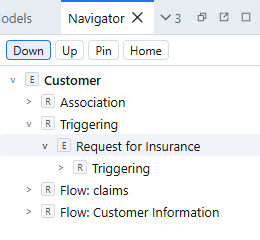
- The root follows your selection: select an element or relationship in the tree or on a view and the Navigator re-roots to it.
- Expanding an element row shows its relationships — outgoing in Down mode, incoming in Up mode; expanding a relationship row shows the concept at the other end. Children are built lazily, so cycles in the model are safe to explore.
- Pin freezes the current root while you click around elsewhere; Home re-roots to the current selection.
- Single-click a row to select that concept in the model tree (the Properties panel follows) without re-rooting; double-click an element row to make it the new root.
Visualiser and generated views
Open Views ▾ → Visualiser for an ephemeral relationship graph in a main canvas tab. It follows element or relationship selection unless pinned. Use Back/Home, drill in by double-clicking, choose depth 1–6, direction, viewpoint, and element/relationship filters, then relayout as needed. Enable Relationship names to show stored relationship names in both the live graph and its SVG, PNG, or copied PNG output. Selecting a graph node selects the same concept in the Models tree and Properties panel. The graph never enters model state or undo history; only its controls are saved in IndexedDB. Results stop at 1,000 concepts and show a truncation warning so filters can be tightened.
Select one or more semantic elements in the Models tree or on a view and choose Generate View For… from the context menu. Set the name, viewpoint, depth, and whether every relationship internal to the result should be included. The candidate is validated and laid out before mutation; success creates and opens the complete view in one undo step, including relationship-to-relationship connection topology. A layout or validation failure creates nothing.
Outline
The Outline is an opt-in minimap of the active view. Open it from Views ▾ → Outline; it docks with the Models panel and remains available in read-only mode.
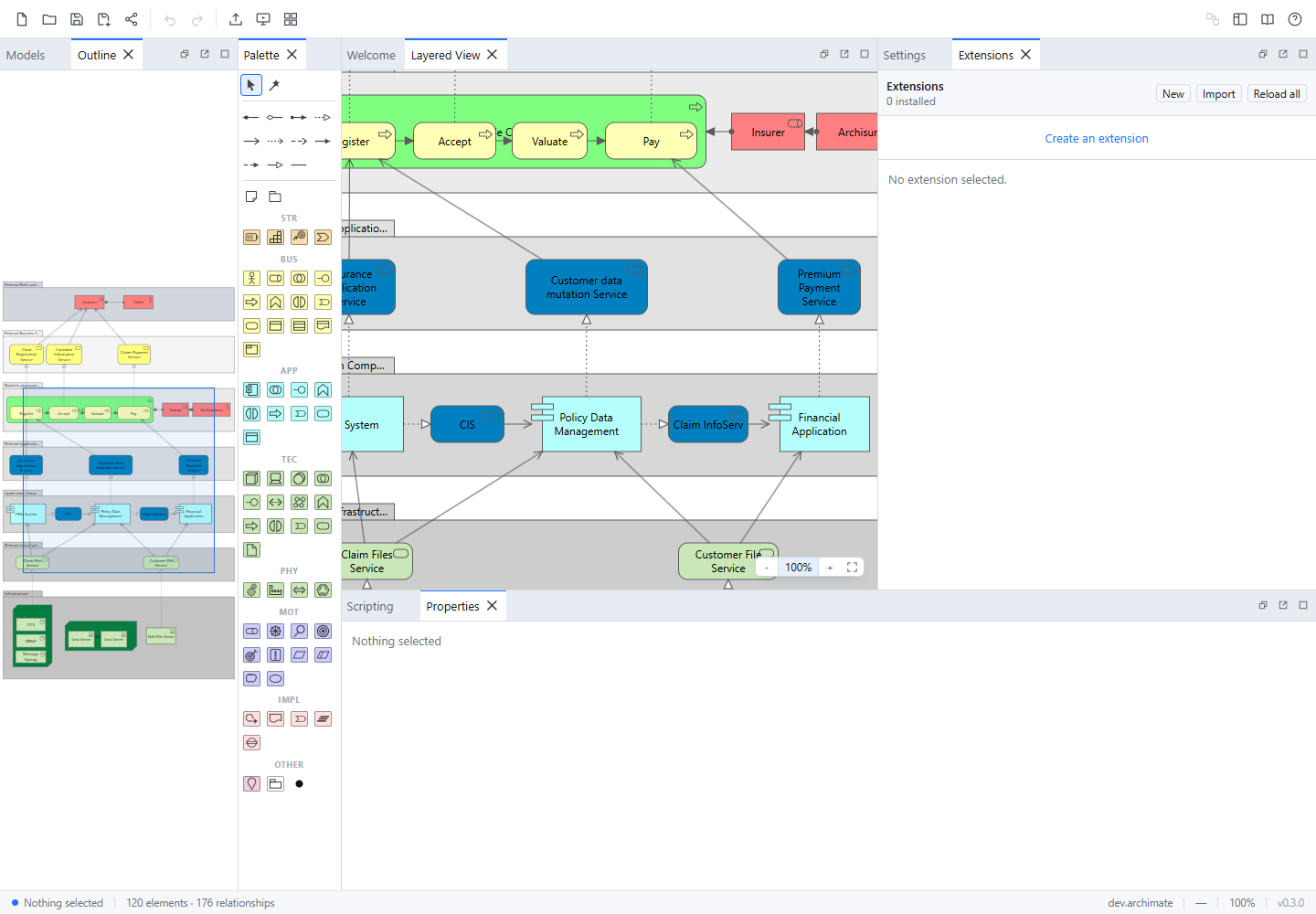
The blue rectangle marks the portion currently visible on the canvas and updates as you pan, zoom, or resize the editor. Click anywhere in the thumbnail to center the canvas on that point, or drag across the thumbnail to pan continuously. Outline navigation changes only the viewport — it does not edit the model, mark it dirty, or create an undo step.
Properties panel
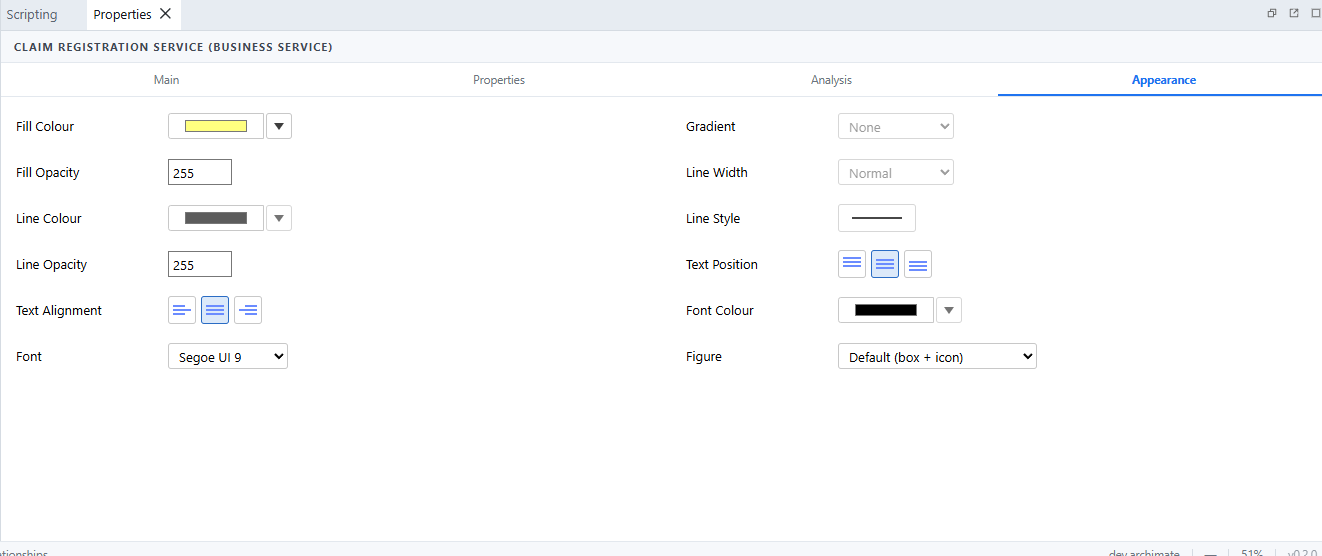
The Properties panel follows the current selection in the tree or on the canvas. Depending on what is selected it edits:
- Name and Documentation. Notes use a multiline Content field and keep their content out of the Properties header.
- Properties — the ArchiMate key-value property list.
- Appearance (diagram objects) — fill/line/font color and opacity, gradients, solid/dashed/dotted/hidden outlines, normal/medium/heavy widths, derived line color, Note borders (Dog Ear, Rectangle, or None), icon color and visibility, text placement, and font family, point size, bold, and italic. Local Font Access augments the editable common-font list when the browser grants permission.
- Label — a live Archi 5.9 label-expression editor with rendered preview and diagnostics. Explicit expressions override C4 and default labels.
- Image — custom or specialization image source, shared gallery/chooser, preview, removal, and all ten Desktop image positions. The gallery can copy and deduplicate an image from another open model.
- Specialization — exact-type profile assignment for elements and relationships. Use the Specializations Manager to create, edit, preview, and delete model profiles transactionally; specialized palette and tree entries create already-assigned concepts.
- Legend (native legend Notes) — choose core and specialization element/relationship scopes, name or category sort, None/Core/User icon colours, rows per column, width offset, and Optimal size. Legend labels and User colours come from browser-local settings and are not written into the model.
- Figure (elements with two notations) — switch between the default box-with-icon figure and the classic ArchiMate shape.
- Relationship specifics — access type (access relationships), influence strength (influence relationships, e.g.
++), and directed (association relationships). - Junction type — AND / OR.
- Viewpoint (views) — the view's declared viewpoint.
All of these are model data: edits create normal undo steps and mark the model dirty. Selecting multiple objects shows the selection count; appearance edits apply to the whole selection where they make sense.
The toolbar Properties manager is the model-wide companion to the per-object tab. It lists exact keys, occurrence/owner counts, values, owner types, and stable model/view locations, including blank and duplicate keys. Rename and delete are staged operations: review the affected occurrences, acknowledge a collision before renaming to an existing key, then apply one operation as one undo step. Renaming changes keys in place, so property values, duplicates, and relative order are preserved. Read-only sessions can inspect and navigate the ledger but cannot apply changes.
For a single selected element or relationship an Analysis tab appears — the same read-only queries as desktop Archi's Analysis tab:
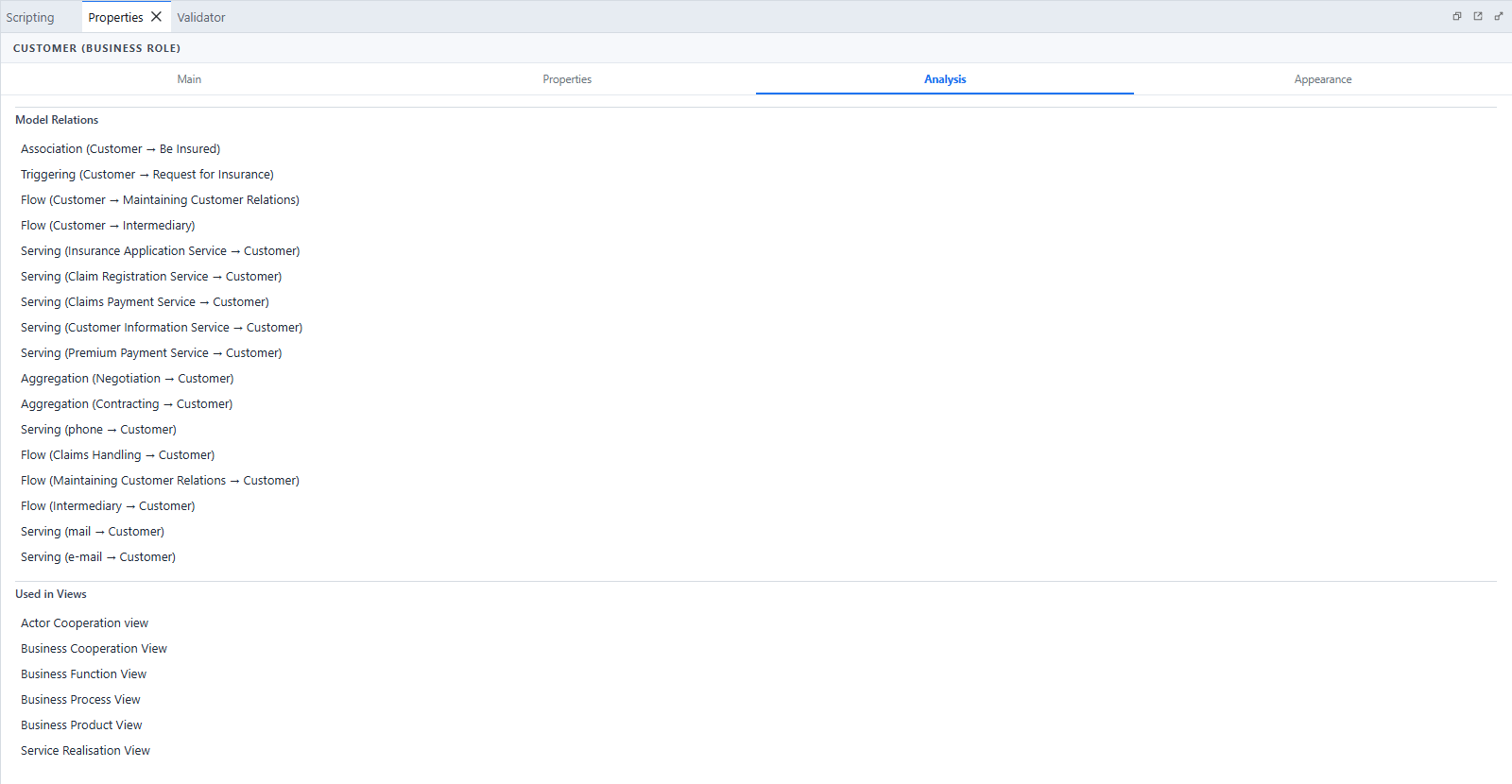
- Model Relations — every relationship touching the concept (outgoing first, then incoming). Click a row to select that relationship in the tree.
- Used in Views — every view containing the concept. Click a row to open the view with the concept selected on it.
Validator
The Validator checks the whole model against a set of rules ported from desktop Archi's model validator. It is an opt-in panel — open it from Views ▾ → Validator (it docks with the Scripting panel).
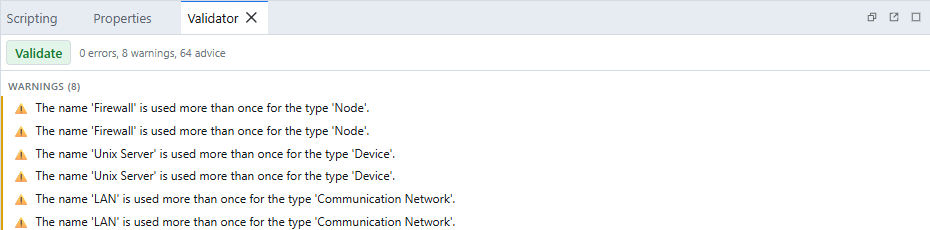
Click Validate to run the checks over the current model — validation is on demand, not live, so re-click after making changes. Results are summarised as N errors, N warnings, N advice and listed in three groups:
- Errors (⛔) — illegal relationships (a relationship type the ArchiMate matrix does not allow between its two ends) and junctions whose relationships are not all the same type.
- Warnings (⚠️) — elements or relationships not used in any view, possible duplicates (same name and type), and concepts on a view whose viewpoint does not allow them.
- Advice (ℹ️) — empty views, and elements visually nested inside another element without a nesting-type relationship between them.
Use Configure to enable or disable any of the eight pinned Archi 5.9 Hammer rules. Their severities are fixed and every rule is enabled by default. The separate Model integrity group checks duplicate or key-mismatched IDs, missing references, folder membership/root placement, view ownership, and invalid connection topology. These checks are Online safeguards and are not labelled as Desktop Hammer rules.
Click any issue to jump to it: view issues open the view and select the diagram object, while element and relationship issues select the concept in the Models tree so the Properties panel follows. The panel is read-only and works in the shared read-only viewer.
Settings
Settings are app-wide preferences for the current browser profile. They are stored in IndexedDB, never in .archimate files, and changing them either updates display behavior immediately or affects future edits — existing objects keep their stored bounds and style. Each row has a reset button, and Reset all restores the defaults.
| Section | Settings (defaults) |
|---|---|
| General | Theme (System, the default; Light; or Dark). System follows the operating-system preference. Show toolbar context help (on). Add a note to a Relation's documentation field when changing type (off). When enabled, an automatically converted Association is prefixed with (Changed from <type>). |
| Model tree search | Name (on); Documentation, Property Value, Views, Show All Folders, Match Case, and Regular Expression (off). Query text and selected keys/types are intentionally not persisted. |
| Automatic relationships | Use nested connections and prompt for palette creation, tree drop, and canvas movement (on); normal relationship candidates use Desktop defaults; reverse candidates default off; every relationship type is hidden while represented by nesting. |
| Connections | Use orthogonal connection anchors (off). When enabled, automatic attachment points prefer horizontal or vertical approaches and otherwise use corners. |
| Legends | New legends use 15 rows per column, Core colours, and Category sort. Custom labels and User colours are browser-local and never enter .archimate files. |
| Canvas snapping | Grid visible (off); snap to grid and alignment guides (on); grid size (12 px) — also the Shift+arrow nudge step. |
| Clipboard | Paste Special mode: Reference existing concepts. Duplicate concepts is the alternative. |
| New object defaults | Text align (center) and text position (center) for new objects; default sizes for elements (120×55), junctions (15), notes (185×80), groups (400×140), and view references (200×140). |
| Canvas interaction | Drop offset (16 px), paste offset (16 px), minimum node size (20 px), move drag threshold (4 px), bendpoint drag threshold (5 px). |
| Align & distribute | Alignment anchor (last selected) — the element Align and Match Size snap the rest of the selection to. |
| Viewport | Zoom limits (0.1–4), wheel zoom factor (1.1), button zoom factor (1.2), fit-to-window maximum zoom (1.5) and padding (24 px). Each view remembers its own zoom and pan position in the browser workspace. A view without a saved position starts at 100% with a 20 px offset unless its diagram is too large, in which case it fits once when the canvas becomes visible. |
Values are validated and clamped to sensible ranges when loaded or edited.
Files and autosave
.archimate files are the durable, portable format — plain XML for asset-free models and Desktop-compatible ZIP archives for image-bearing models. Open… also accepts ArchiMate Open Exchange .xml files; they are imported as new, unsaved models, so the next save writes a native .archimate file rather than overwriting the interchange source.
Saving prefers a native browser file handle (write-in-place) and falls back to a download when the browser or organization policy blocks file handles. The dirty marker is based on the model's saved revision, not merely the number of undo entries: undoing exactly to the last completed save clears the marker, and redoing away from it marks the model dirty again. A save captures one revision before serialization; edits made while that save is still running remain unsaved when it completes. Newly opened native files and new models start with a save point, while imported models and autosave-restored dirty models intentionally do not invent one. See Getting Started for the storage overview and Archi Compatibility for exchange details.
Autosave version 2 writes the complete open workspace as document bytes to IndexedDB shortly after every change and restores all model roots, file names, dirty flags, active model, open views, per-view viewport positions, and image assets on the next launch. It protects against crashes and accidental tab closes within the same browser profile — it is not a backup.
Visualiser controls, Validator configuration, and the model-template catalog also use versioned IndexedDB records. Loading failures fall back to defaults and never block editor startup. These browser-local records are not written into .archimate files.
Installed app and offline use
Production builds are installable as a PWA in supporting browsers. The service worker precaches the editor shell, core build assets, the autosave worker, examples, icons, and manifest, so the installed app can launch offline after it has loaded once. Monaco editor and language-worker assets are cached at runtime after their first successful load rather than being added to the initial precache. Model files, autosave, settings, scripts, extensions, and layout still stay local to the current browser profile or file system.
When the browser and operating system support them, the installed app exposes app shortcuts for New model and Open model file, a .archimate file handler, and a share target for .archimate or XML model files. Launched and shared files are added to the existing workspace instead of replacing a model.
Keyboard shortcuts
Open this table anytime with the ? toolbar button.
| Shortcut | Action |
|---|---|
Ctrl+S / Ctrl+O | Save / open model |
Ctrl+Z | Undo |
Ctrl+Y or Ctrl+Shift+Z | Redo |
Ctrl+X / Ctrl+C / Ctrl+V | Cut / copy / paste diagram objects; copy and paste model-tree elements/views, including across models |
Ctrl+D | Duplicate (model-tree or view selection) |
Ctrl+A | Select all on the active view |
Delete | Delete from view (canvas) or from model (tree) |
F2 or double-click | Rename |
| Arrow keys (canvas) | Nudge selection by 1 px |
Shift+arrows | Nudge selection by one grid step |
Arrow keys / Home / End (model tree) | Move focus and selection; Ctrl/Cmd moves focus only |
Enter / Space (model tree) | Open a focused view / toggle the focused row in the selection |
Ctrl+wheel, Ctrl+=, Ctrl+- | Zoom canvas (per view) |
Ctrl+0 | Zoom to 100% |
Home | Fit diagram to window |
Middle-drag or Space+drag | Pan canvas |
Wheel / Shift+wheel | Scroll canvas |
Alt while dragging | Disable grid and alignment-guide snapping |
Escape | Cancel tool / clear selection |
Ctrl+Enter (script editor) | Run script |
| Double-click bendpoint | Remove bendpoint |
Ctrl+F (model tree) | Focus the all-model tree search |
← / →, PgUp / PgDn, Space (presentation) | Previous / next view |
Home / End (presentation) | First / last view |
On macOS, Cmd works in place of Ctrl for save/open/undo/redo.
Scripts and extensions
- The Scripting panel runs jArchi-style JavaScript against the open model — one script run is one undo step. See Scripting API.
- The Extensions panel manages browser-local extensions that add commands, menus, toolbar buttons, panels, and event handlers. See Extensions for official downloads, Extension API for development, and Extension Packages for the package format.